The IPTV Program Guide (EPG) Explained: Catch-Up, Favorites and Smarter Channel Browsing
Understand how the IPTV electronic program guide works, why it sometimes shows the wrong times, and how to use favorites, search and catch-up well.
By IPTV Gold Editorial 13 min read
With thousands of channels to choose from, the program guide is what turns IPTV from a long list into something pleasant to use. A good guide shows what is on now, what is on next, and what you can watch later, and it lets you jump straight to the match or the series you care about. A poor guide leaves you scrolling through a wall of names, or shows times that are wrong by an hour so that you miss the start of the program.
Most people never learn how the guide works, so when something looks wrong they have no idea where to start. This article explains where the guide comes from, how your player uses it, why the times sometimes drift, and how to get more out of it with favorites, categories, search, reminders, and catch-up features where your plan and player support them. If you are still setting up a device, begin with our complete IPTV setup guide, and if the guide itself is blank or wrong, the fixes are collected in our troubleshooting article.
What the program guide actually is
The program guide is usually called the electronic program guide, or EPG. It is a schedule: a list of programs for each channel, with titles, start and end times, and often a description, genre, and artwork. Wikipedia's article on the electronic program guide gives the general background, and it is the same idea as the printed listings that used to come with a newspaper.
The key point is that the guide is separate from the video. The video streams carry pictures and sound. The guide is a separate set of data that your player downloads and then matches to the channels. That separation explains most guide behavior. It is why a channel can play perfectly while its guide is empty, why the guide can take a while to appear after you log in, and why a guide can show the wrong times even when the video is fine.
Schedules are often delivered in a standard format called XMLTV, described on Wikipedia's XMLTV page, although some services deliver their guide data through the same login your player already uses. You do not need to understand the format. It helps only to know that the guide is a file of schedules that has to be loaded, refreshed, and matched correctly.
How guide data reaches your player
When you sign in, your player does several things in order. It downloads the list of channels and categories. It then requests the schedule data, which can be large because it covers many channels over several days. Finally, it matches each channel to its schedule using an identifier, a short code attached to the channel.
This process explains the common first-day experience. The channel list appears quickly, the guide is empty for a minute or two, and then the program information fills in. On a large channel list, a modest device, or a weak Wi-Fi connection, it can take longer. Give the player a full two minutes after the first login before deciding that something is wrong.
After the first load, the player keeps a copy of the schedule on the device and refreshes it from time to time. Some players refresh when you open them, some on a timer, and some only when you press an update button. If your guide looks out of date, find the refresh option in the player's settings, which is often labelled update guide, reload EPG, or refresh playlist.
The matching step matters too. If a channel has no identifier, or the identifier does not match a schedule, that channel shows no program information. This is a data question rather than a fault with your device, and we return to it below.
Reading the guide quickly
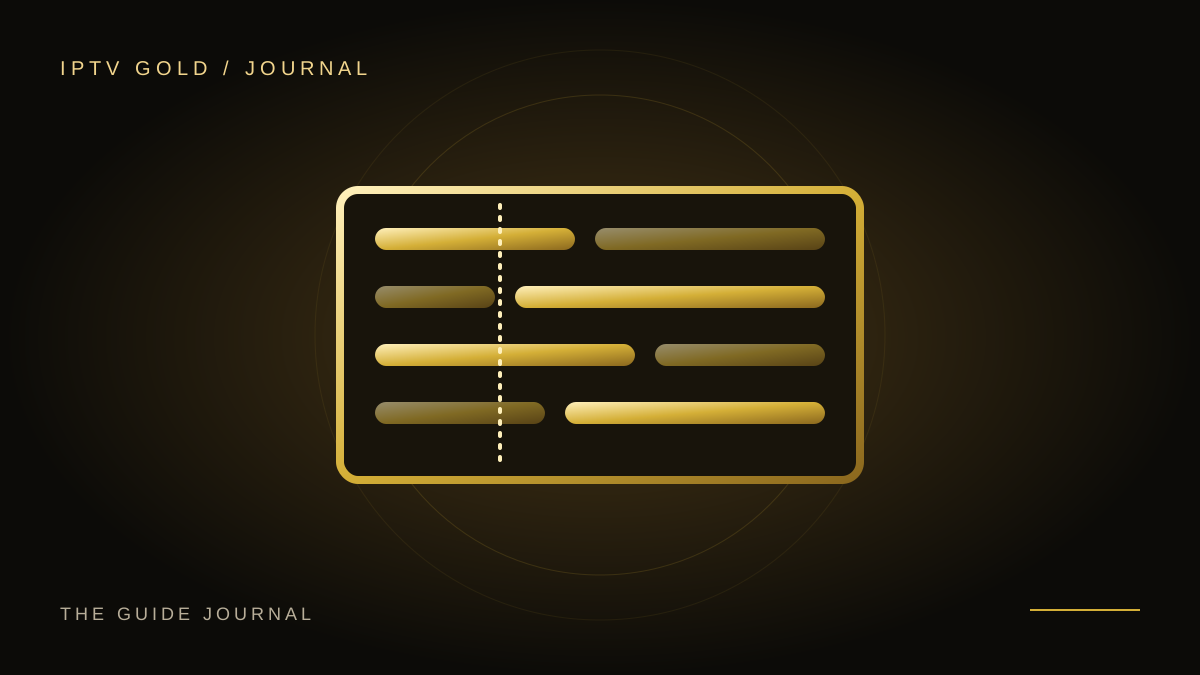
Most guides share a layout: channels down the side, time across the top, and a highlighted marker for the current time. Learning a few habits makes browsing fast.
- Use the now and next view when you only want to know what is on. Many players show the current and following program for each channel in a compact list.
- Move across the time axis to see later programs, and press the select button on a future program to read its description or set a reminder.
- Look for small icons that mark programs you can watch again, programs with a reminder, or programs that are currently recording, where your player supports those features.
- Use the genre or category filter to narrow a long list to sport, movies, news, or kids.
- Open the information panel for details such as the length of the program, the age rating, and the audio and subtitle options.
Spend ten minutes exploring the buttons on your remote while the guide is open. Most remotes have shortcuts for paging up and down, jumping to the current time, and opening a channel list, and knowing them saves a lot of scrolling.
Why times are wrong and how to fix them
Wrong times are the most common guide complaint, and the cause is nearly always the time zone. The schedule data is published with a time reference, and your player converts it to local time using the time zone settings on your device and in the player. If either is wrong, every program shifts by the same number of hours.
Work through these checks in order.
- Check the date, time, and time zone on the device. Turn on automatic date and time, and choose the correct region.
- Check the time zone setting inside the player. Some players have their own setting that can override the device.
- Look for a guide time offset or EPG time shift setting. It moves the whole guide forward or back in steps of an hour, and it is the quick fix when every program is off by the same amount.
- Refresh the guide after changing anything, because the player keeps the old schedule until it downloads a new one.
- If only some channels are wrong, check whether they are variants for another region. A channel meant for a different time zone shows its own local times.
Daylight saving changes cause a second kind of error. When clocks change, a guide that was loaded before the change can be an hour out until it refreshes. Setting the device to update its time automatically and refreshing the guide after the change usually fixes it.
If your times are off by something that is not a whole number of hours, or the guide is wrong for every channel and none of these steps help, tell support which time zone you are in and what the guide shows.
Why some channels have no guide
You may notice that most channels show program information but a few show nothing, or show only the channel name. This is normal, and it comes from how the data is matched.
A channel needs an identifier that matches an entry in the schedule data. Some channels do not have a schedule published at all, for example small local channels, pop-up event channels, or channels that run continuous content with no fixed program times. Other channels have a schedule but the identifier is missing or does not match, so the player cannot connect the two.
Some players let you assign a guide source to a channel by hand, but this is time consuming and is only worth doing for channels you watch often. A more practical approach is to hide channels you never use, so that the list you scroll through is full of channels with useful information. If an important channel is missing guide data, report the channel name to support so that the data can be checked.
Make the guide fast on modest devices
A big channel list means a big guide, and a modest device can struggle with both. If scrolling feels slow, or the player takes a long time to open the guide, try these changes.
Reduce the number of channels the player has to show. Most players can hide categories, so hide the languages and groups you never watch. A shorter list loads faster and is easier to browse.
Free up storage and memory. Clear the player's cache, remove unused applications, and restart the device occasionally.
Use a stable connection. The schedule download is large, and a weak Wi-Fi signal makes the first load slow and can interrupt refreshes. A wired connection where possible helps, and our streaming guide explains how to improve Wi-Fi.
Consider the device. If the guide is slow even after these steps, the hardware may be too limited for a large list. Our device comparison explains what to look for in a replacement, and many households find that a current, inexpensive streaming stick solves the problem.
Build a favorites list that you actually use
A favorites list is the single most useful feature in any IPTV player. Instead of browsing thousands of channels, you open a short list of the ones you really watch. The difference in daily use is large, because most households watch the same twenty or thirty channels most of the time.
Build your list in a sitting. Go through the full list once and add every channel you recognize as something you or your household watches. Do not worry about getting it perfect, since you can change it later. Then review it after a week and remove channels you never opened.
A few habits make a favorites list better.
- Group by person or purpose if your player supports multiple lists. A list for sport, a list for the children, and a list for news keeps everyone happy.
- Put the most used channels at the top. Many players let you reorder favorites.
- Keep the names clear. If a channel has an unhelpful name, check whether the player lets you rename it.
- Remember that favorites are usually stored on each device separately. Setting up the list on the living room television does not automatically copy it to your phone, so expect to repeat the work, or at least note which channels you chose.
- Note your favorites somewhere outside the player, such as in your phone's notes, so that you can rebuild the list quickly if you reinstall the application or change device.
On a few devices, clearing the application data removes your favorites. Before you clear data as a troubleshooting step, check whether you would lose a list that took an hour to build.
Use categories and search effectively
Categories divide the full list into groups such as sport, movies, series, kids, news, and music, often further divided by country or language. Learning to use them is the second most useful skill after favorites.
Hide what you do not need. If you never watch channels in certain languages, hide those categories, and the guide becomes shorter and faster. Most players let you hide a category without deleting it, so you can show it again later.
Use search instead of scrolling. A search box in the player finds channels by name and sometimes programs by title. Typing the first few letters is much faster than paging through a long list. On a remote with a voice button, voice search is quicker still where the player supports it.
Explore the catalogue before you commit. If you want to know what kinds of channels and titles are available, our channel categories page shows the structure, and you can try the service yourself with the free trial.
Catch-up, time shift, and recordings
Some services and players offer ways to watch programs after they have been broadcast, or to pause and rewind live television. The names and the details vary, so it is worth being precise about what each one means.
Catch-up lets you watch a program that has already been broadcast, usually within a limited window of recent days. Time shift lets you pause or rewind a live program, which Wikipedia describes under time shifting. Recording saves a program for later, either on your device or with the service.
The important point is that none of these is guaranteed by the player alone. Whether a feature works depends on three things: whether your plan or provider supports it for the channel, whether your player supports it, and whether the channel carries the extra data needed. A channel might offer a catch-up window while another does not. Check the details of your own plan before you rely on a feature, and ask our team if you are unsure which channels support it.
When a feature is available, a few tips help. Look for a catch-up icon or an archive marker in the guide next to programs you can watch again. Remember that the window is limited, so watch before it expires. If you record on the device, check available storage and expect large files, especially at higher quality. Recordings are for your own personal viewing, and you should follow the rules for copyrighted content in your region.
Parental controls and profiles
If children use the same television, take a few minutes to set up controls. Many players include a PIN lock that can hide or protect categories, a setting for age ratings, and profiles that give each person their own favorites.
A good approach is to create a separate list of suitable channels for the children and keep the full list behind a PIN. Choose a PIN that is not obvious, and change it if the children discover it. Remember that no filter is perfect, since category labels come from the data and can occasionally be wrong. Supervision remains the best protection, and the controls simply make it easier.
Parental settings usually live inside the player, not in your account with the service, so repeat them on every device that children can reach. If you are unsure how your player handles them, our FAQ covers common questions, and support can point you to the right menu.
Reminders and planning your viewing
Reminders make the guide useful for live events. When a match, a final, or a favorite series is coming up, select it in the guide and set a reminder, if your player offers the option. The player then alerts you shortly before the program starts, which is far more reliable than remembering the time.
For events in other time zones, check the time conversion carefully. A match listed in the guide is shown in your local time once your time zone is correct, but a time you read in a news article may be in a different zone. Rely on the guide once you have confirmed that its time settings are right, and add a few minutes of margin for pre-match coverage.
A short weekly routine also helps. Choose one evening to look at the coming days in the guide, set reminders for the programs you do not want to miss, and remove any reminders that no longer matter. Five minutes of planning is often enough to turn a crowded schedule into a plan that suits your household.
Accessibility: subtitles, audio tracks, and readable text
The guide and the player also hold the settings that make viewing comfortable for everyone. Look for the subtitle and audio menu while a program plays. Many channels offer several subtitle languages and sometimes alternative audio tracks, such as another language or commentary. Wikipedia's article on closed captioning explains the difference between captions and subtitles.
Check the appearance settings in the player, where you can often change the subtitle size, color, and background, which is important for readability on large screens. Some televisions have their own accessibility settings for text size, contrast, and audio, and they apply across applications. If the guide text looks too small from the sofa, increase the interface size or the television's text setting rather than leaning forward to read it.
Keep the guide healthy
A few simple habits keep the guide working well over time.
- Refresh the guide now and then, especially after a time change or if programs look out of date.
- Keep the player and device software updated, since fixes for guide problems often arrive in updates.
- Avoid clearing application data unless you need to, because it removes favorites and settings.
- Keep a note of your favorite channels and key settings, so that rebuilding after a reinstall takes minutes rather than an evening.
- Restart the device occasionally to clear small faults that build up over time.
When to contact support about the guide
If the guide is blank after several minutes, wrong for every channel after you have checked the time zone, or missing for a channel you rely on, contact us. Include your device and player, your time zone, the names of the affected channels, what the guide shows, and what you have already tried. The support page lists the options, and a clear description usually leads to a quick answer.
Final thoughts
The program guide is simple once you know that it is a separate schedule matched to your channels. Give it time to load, set the time zone correctly, hide what you do not use, build a favorites list you really watch, and use search and reminders instead of endless scrolling. Where your plan and player offer catch-up or time shift, check exactly what is included and make good use of it. A little setup on the first evening saves effort every day, and you can compare the available options on our pricing page when you are choosing a plan.